The graph workspace
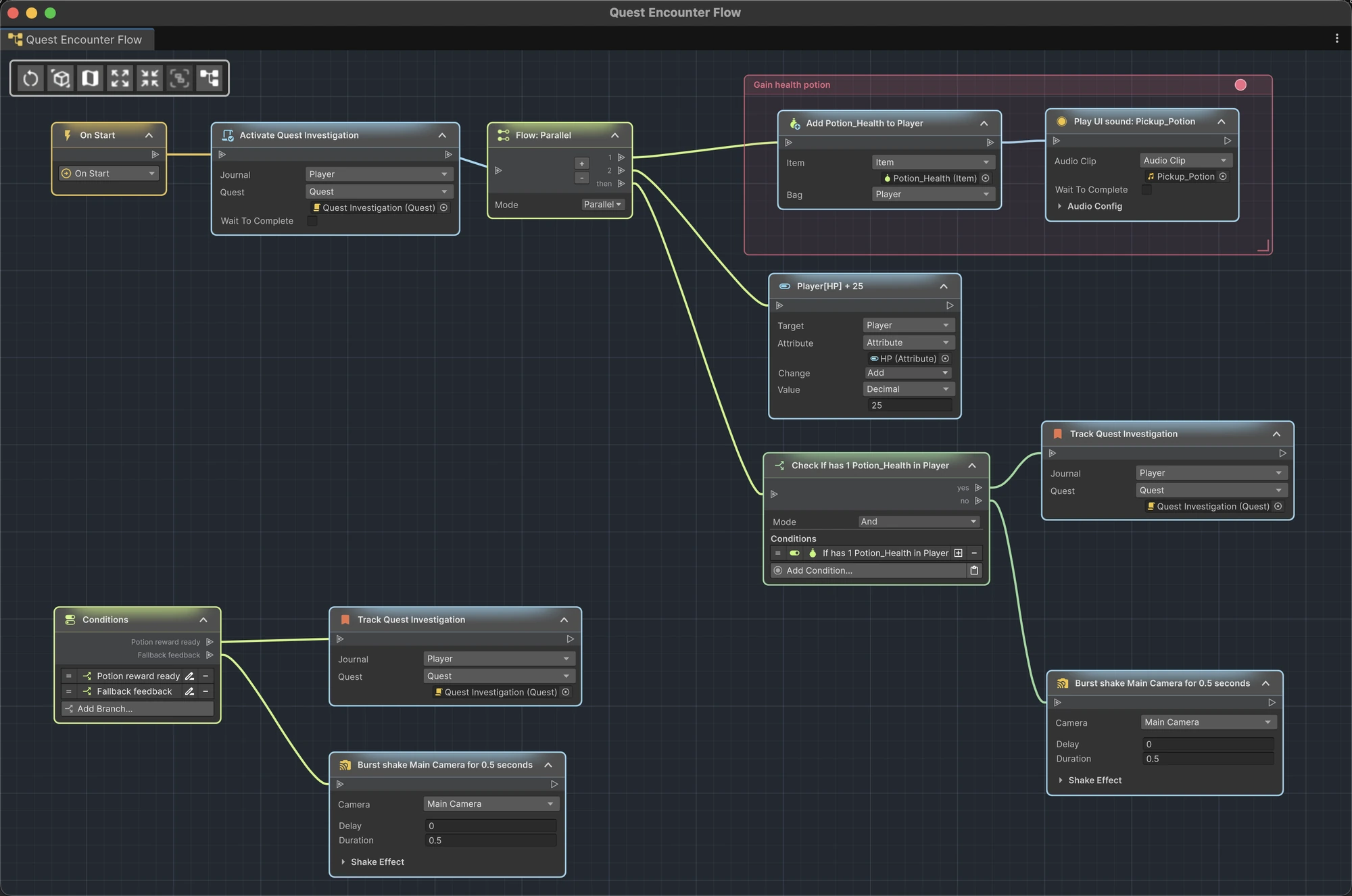
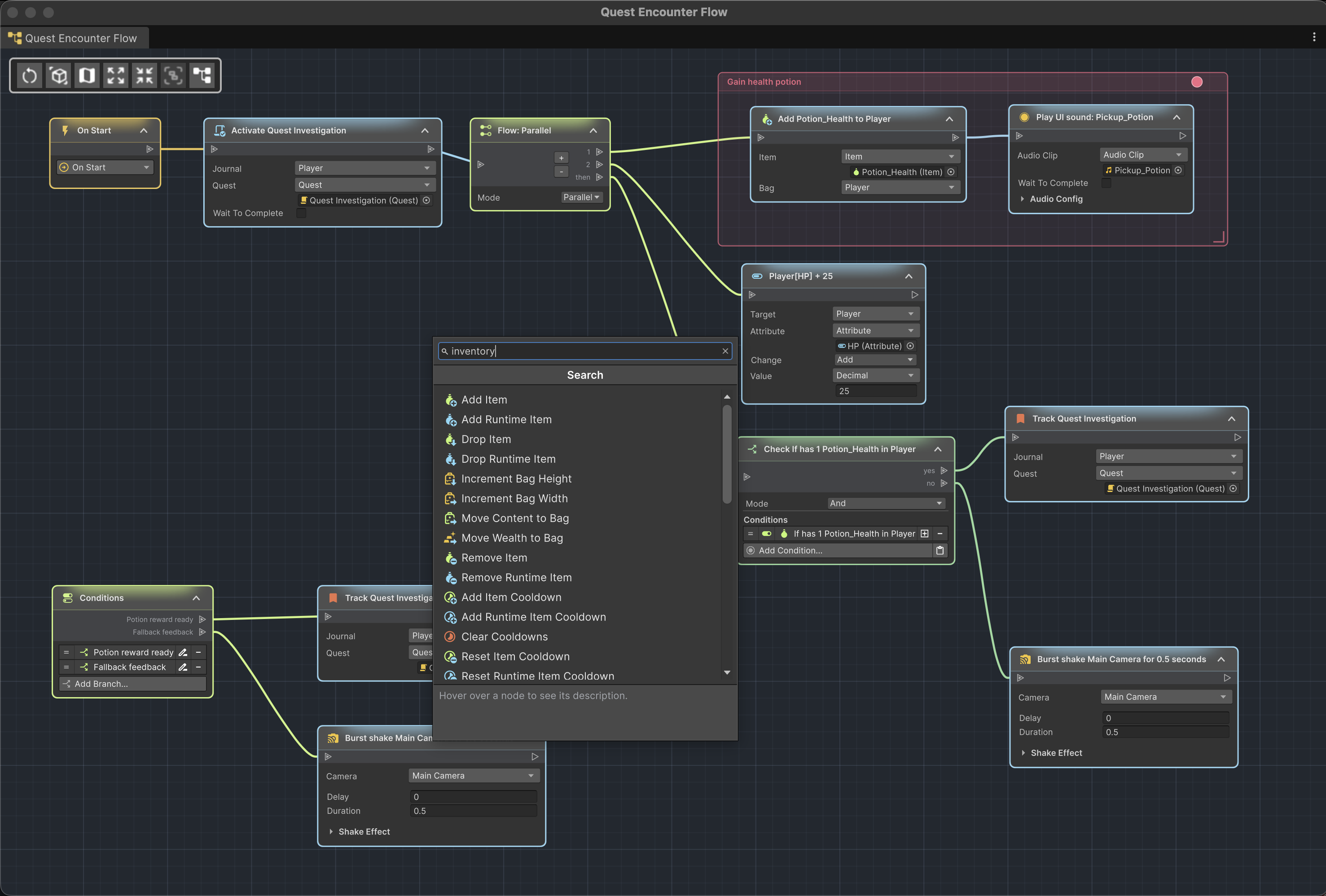
The ActionFlow 2 window combines a node canvas, an editing toolbar, optional overview tools, and the complete Game Creator fields for every visible node. The workspace adapts to component and prefab graphs, compatible Story Engine Rules, reusable ActionFlow assets, and compatible LogicBlock assets.
You can follow the connections while editing each node's settings.
Canvas
Drag with the middle mouse button to pan, or hold Alt (Option on macOS) and drag with the left mouse button. Use the mouse wheel to zoom around the pointer. Reopening the same graph returns to your last view.
The background grid gives movement and alignment a visual scale without changing what the instructions do.
Nodes and ports
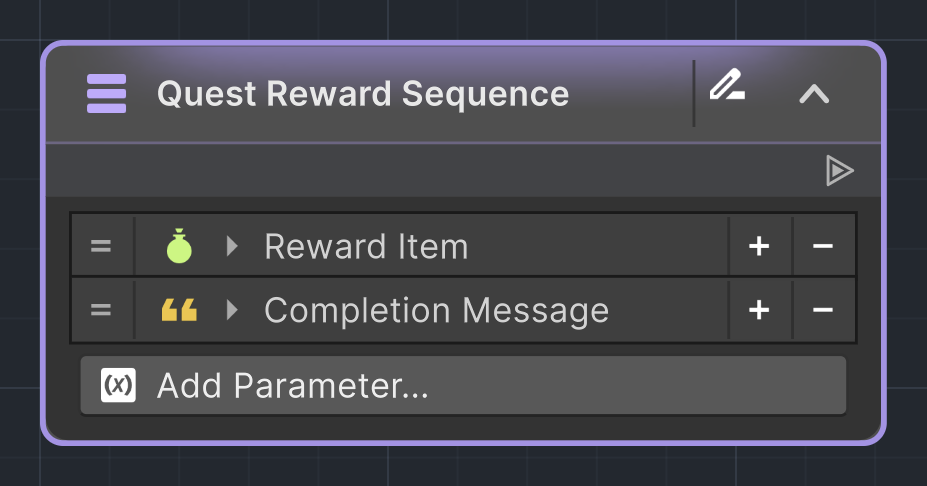
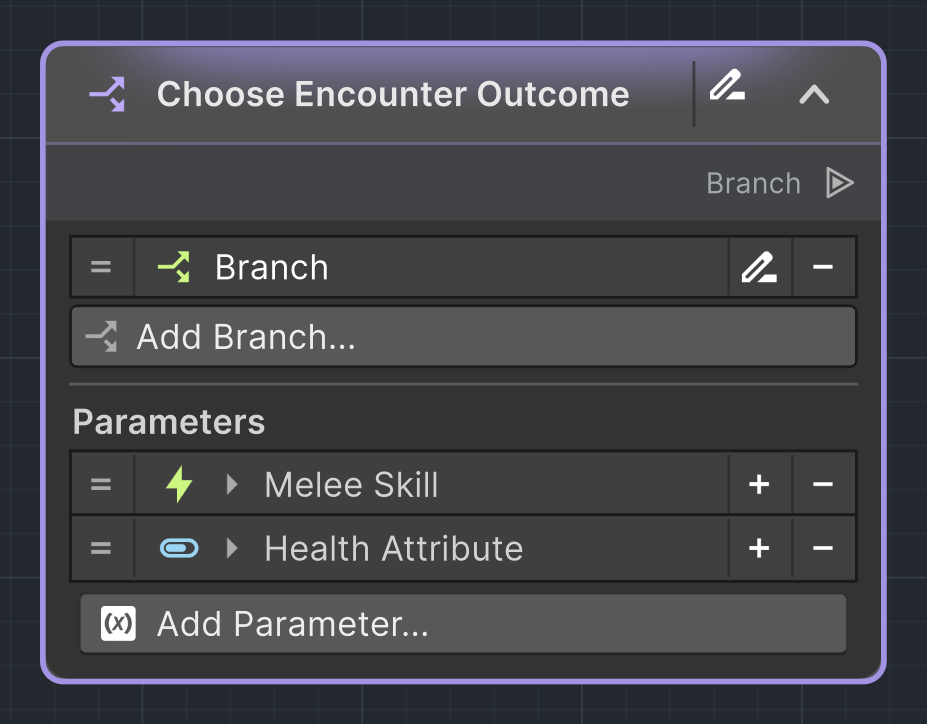
Nodes contain:
- a colored header and title;
- an input port when the node can have a predecessor;
- one or more output ports;
- an expandable body with Game Creator fields.
Connections run from output ports to compatible input ports. Trigger, Rule, and Conditions root nodes do not have input ports.
Selection
Click a node to select it. Left-drag across empty canvas to draw a selection rectangle around several nodes. Multi-selection enables bulk copy, deletion, expand/collapse, and placemat creation.
Node picker
Open the node picker in either of these ways:
- press Space over the graph;
- right-click the canvas and choose Add Node.
Search by node title, category or description. Press Enter to create the first search result or Esc to close the picker.
Instruction nodes are grouped by their Game Creator category. The picker also exposes Trigger, Flow, Branch, and Conditions roots where their use is valid. Events and Instructions from compatible installed modules appear after Unity finishes compiling.
Minimap
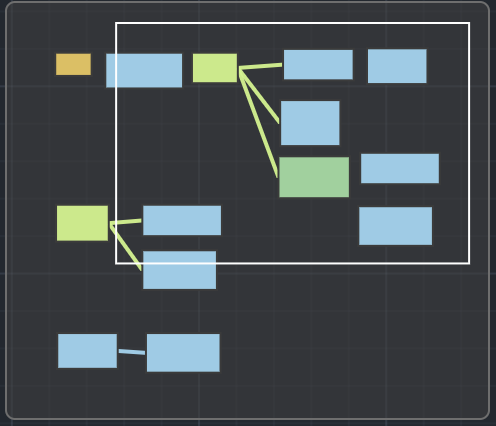
Toggle the minimap from the toolbar. It provides a compact overview of a graph that no longer fits in the viewport. Use it to retain context while navigating a large behavior.
Graph and Inspector editing
While you edit a GameObject in the graph, its Game Creator components are hidden in the Inspector. Use Show Graph to return to the open graph, or Unlock Inspector to switch back to editing the components in the Inspector.
Important
Finish your current edit before switching between the graph and Inspector.
Edit assets
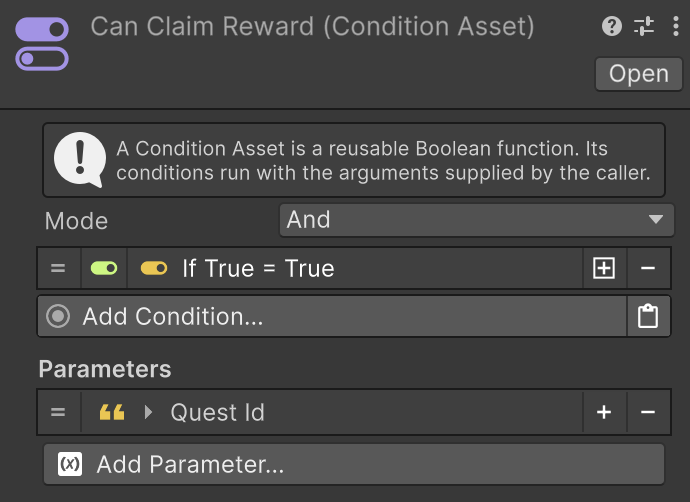
Instruction and Branch Assets use a permanent root that displays the reusable asset's input parameters. Condition Assets use a compact Inspector instead of a node canvas.
A LogicBlock document adds an Overview and focused instruction/condition list views. Its document menu provides Find Usages and refresh commands.