Reusable ActionFlow assets
ActionFlow 2 can store behavior in project assets instead of tying every flow to a scene object or prefab. These assets are reusable, accept input parameters, and can be called from ordinary Game Creator instructions and conditions.
Instruction and Branch Assets open as graphs with a permanent root, the starting point of the behavior. Define input parameters on this root and follow the connections to see what the asset does.
Asset types
| Asset | Contains | Use it when |
|---|---|---|
| Instruction Asset | One instruction sequence, including waits | Several callers should run the same sequence |
| Branch Asset | Conditions and the instruction paths they choose | A reusable operation needs branching flow |
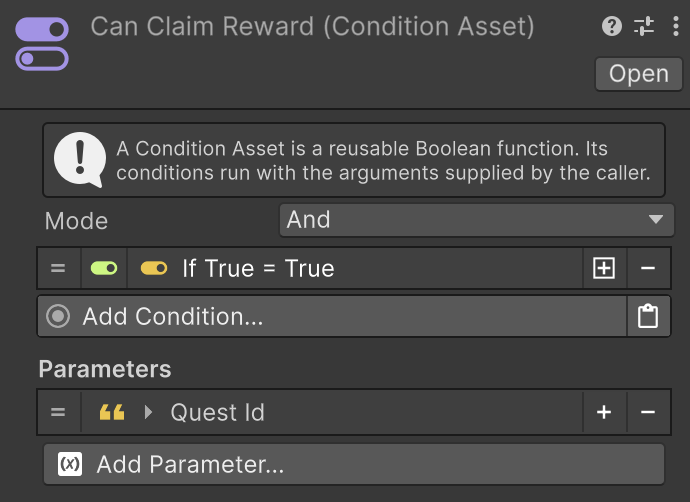
| Condition Asset | A condition list that returns true or false | Several callers should evaluate the same rule |
Create them from Create › Game Creator › ActionFlow 2 in the Project window.
Instruction Asset
An Instruction Asset stores one reusable instruction sequence. Its permanent root defines the typed parameters callers must supply, while the connected graph keeps the complete sequence visible in one document.

Branch Asset
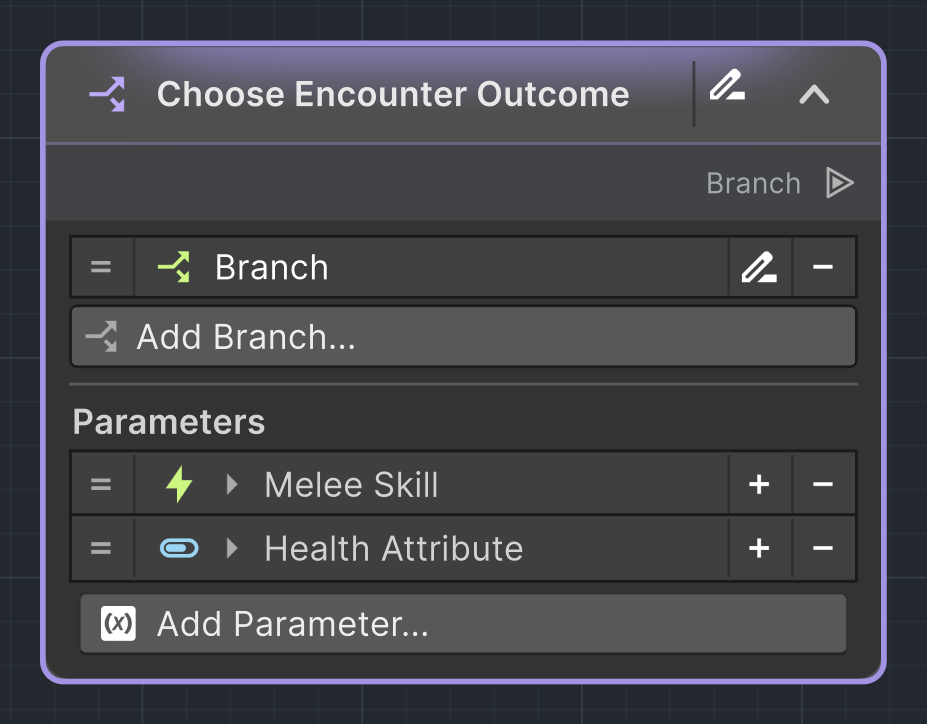
A Branch Asset packages reusable branching behavior. Its permanent root lists the input parameters and starts the flow. Follow the connections to see where each decision path leads.

Condition Asset
A Condition Asset checks a reusable condition list and returns true or false. Edit it in the Inspector. Like the other asset types, it accepts input parameters so you can check the same conditions with different values.
If many objects check a Condition Asset frequently, check it when relevant gameplay events occur rather than every frame. Measure performance in a player build if you need frequent checks.
Double-click an Instruction or Branch Asset to open its graph. You can also select one and choose Assets › Open in ActionFlow 2.
Rooted asset graphs
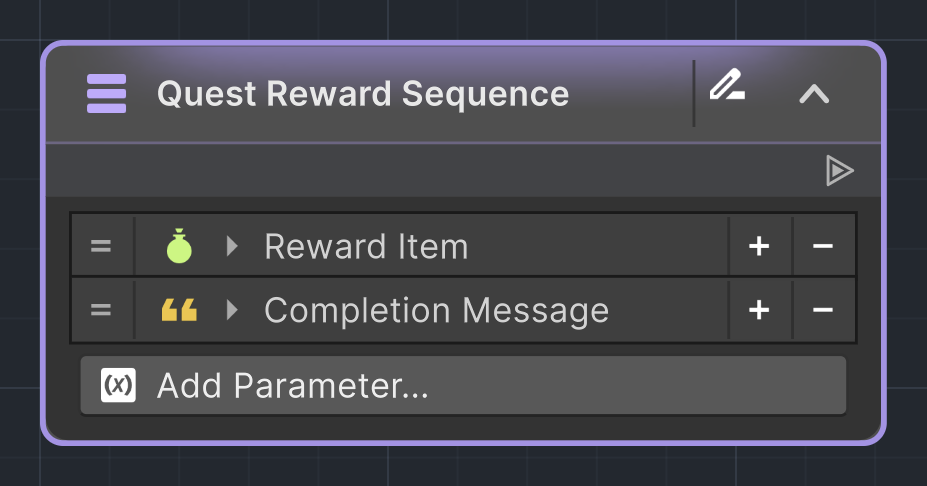
An Instruction or Branch Asset graph has one permanent root. The root lists the asset's input parameters and starts its flow.
Nodes must remain reachable from this root. Add the first node from the root, then extend the graph from existing outputs. Only connected nodes are part of the asset's flow.
You can manage the asset like other Unity assets:
- its data is visible to version control;
- edits participate in Unity Undo and Redo;
- references are preserved when Unity moves or renames the asset;
- callers reference the asset rather than a copied graph.
Define parameters
Select the asset root to add, remove, rename, reorder, or change parameters. Give each parameter a name and choose its value type, such as a number, GameObject or Inventory item.
Available types depend on Game Creator Core and compatible installed modules. Adding a module can add more types after Unity finishes compiling.
Changing the asset's parameters can affect every instruction or condition that uses it. Review those instructions and conditions after removing a parameter or changing its type.
When inputs change, Update Inputs keeps compatible values and lists the inputs that need attention. Removed or replaced values remain under Previous Inputs. They are reused automatically when the same input and type return. Reordering compatible inputs is handled automatically when the caller is displayed.
Notes, placemats, and graph layout travel with an asset when it is duplicated or exported. If notes change outside an open graph while local notes are waiting to save, ActionFlow preserves the local notes in a separate recovery copy. Open Window › ActionFlow 2 › Recovery to restore, export or delete the saved notes. Recovering notes does not duplicate or replace gameplay logic.
Call an asset
ActionFlow 2 adds Game Creator entries for each asset type:
- Run Instruction Asset runs an Instruction Asset;
- Run Branch Asset runs a Branch Asset;
- Check Condition Asset evaluates a Condition Asset;
- the Condition Asset boolean property exposes a Condition Asset as a Game Creator boolean value.
After selecting an asset, supply a value for each input parameter. Use Game Creator properties to choose fixed values, variables or values from compatible installed modules.
Give inputs clear names
Names such as Reward Item or Target Character make it easier to supply the right values when using an asset.
How asset calls run
Different GameObjects can run the same asset independently, and an asset can call another asset. Game Creator properties use the GameObject that called the asset to resolve values such as Self.
Parallel Flow and Run Instruction List with waiting disabled let the calling path continue while their instructions finish. Keep the asset graph open to follow those instructions, including after waits.
Random Flow remembers earlier choices for each calling GameObject. This makes Avoid Twice and Ensure Choosing All work across repeated asset calls, without one GameObject affecting another's choices. The history starts fresh each Play session.
If an asset or required input is missing or has the wrong type, check the Console message and fix the reported input. Avoid assets that repeatedly call each other without a stopping condition; ActionFlow 2 limits recursive calls.
Edit and test safely
Use Edit Mode for structural changes such as adding, deleting, or reconnecting nodes and changing an asset's input parameters.
In Play Mode, the structure is locked. Values on the asset can still be adjusted for testing and those asset edits persist like normal Unity asset changes. Keep the asset graph open to see direct and nested asset calls highlight while they execute.
Find and update callers
Before changing a widely used asset:
- make a version-control checkpoint;
- note the current input parameters;
- change the asset in Edit Mode;
- inspect instructions and conditions that use it for missing inputs or values of the wrong type;
- run representative callers in Play Mode.
See Compatibility and modules for how module content becomes available to assets.