Organize large graphs
Graph layout is separate from the Game Creator behavior. You can move, annotate, and group the view without changing what executes.
As behavior grows, these tools preserve the graph's central advantage: a readable map of the connected hierarchy instead of a stack of nested lists.
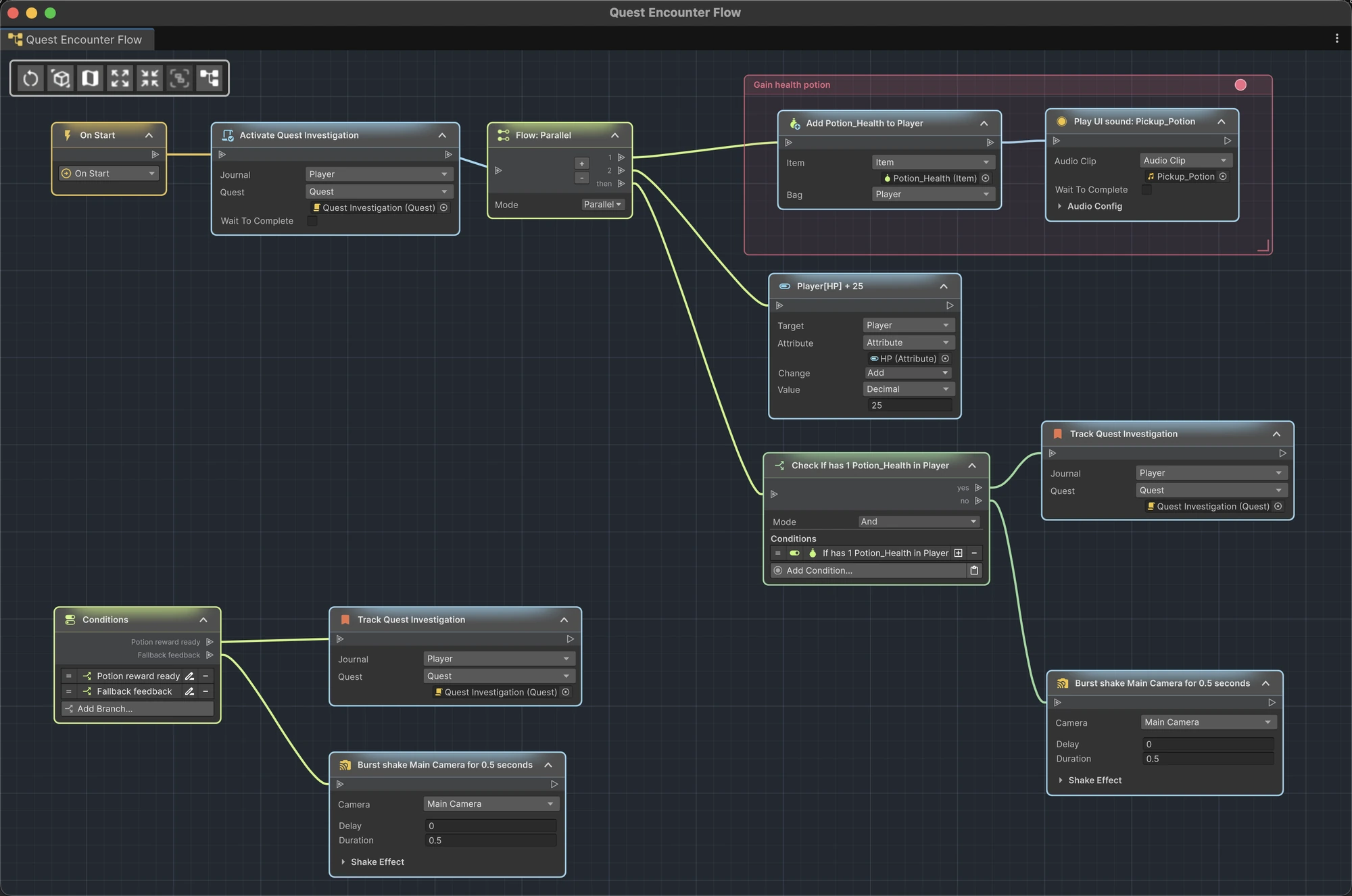
Jump to automatic layout, placemats, sticky notes, or minimap navigation.
Move nodes
Drag a node by its header. Drag multiple selected nodes to move them together. Node positions are saved with the graph. Notes and layout in ActionFlow and LogicBlock assets are included when you duplicate or export the asset.
If a layout save fails, ActionFlow retains the pending changes, retries, and shows the problem in Window › ActionFlow 2 › Recovery. Restore disk space or project write access and choose Retry Saving Graph Layouts.
If you quit while changes remain unsaved, ActionFlow offers Retry Saving, Cancel, or Quit Without Saving These Changes. Quitting without saving can lose the listed notes or layout changes. Existing saved work is kept. Pressing Escape keeps Unity open. If you cancel another Unity save prompt, the pending ActionFlow changes remain available for another attempt.
If notes changed on disk while you had local edits, Recovery keeps your local notes separately. Restore Notes to Original Graph restores those notes and keeps the previous saved notes as another recovery copy. It does not duplicate or replace gameplay logic.
Personal navigation
Panning, zooming, framing and minimap navigation remember your view locally. They do not mark the scene or asset as changed, create prefab overrides, or add Undo steps. Undoing an edit leaves your current view in place. Other team members keep their own view of the graph.
Node positions, collapsed nodes, sticky notes and placemats remain saved graph layout and support Undo.
Automatic layout
The Auto-Layout Graph toolbar icon offers two arrangements:
- Click for a continuous horizontal layout of connected roots and their instruction paths.
- Shift-click to wrap long local instruction chains into rows of six nodes, reducing the distance you need to scroll horizontally.
A lone final node stays on the preceding row instead of occupying a row by itself. For example, seven nodes stay together; thirteen form rows of six and seven. The owning root is separate from this count.
Wrapped rows stay to the right of their root, Branch or Flow node. Nested branches get their own space. Both arrangements preserve graph connections and behavior, and layout changes can be undone with Unity's normal Undo command.
Review branch spacing afterward and move any explanatory notes back near their subject.
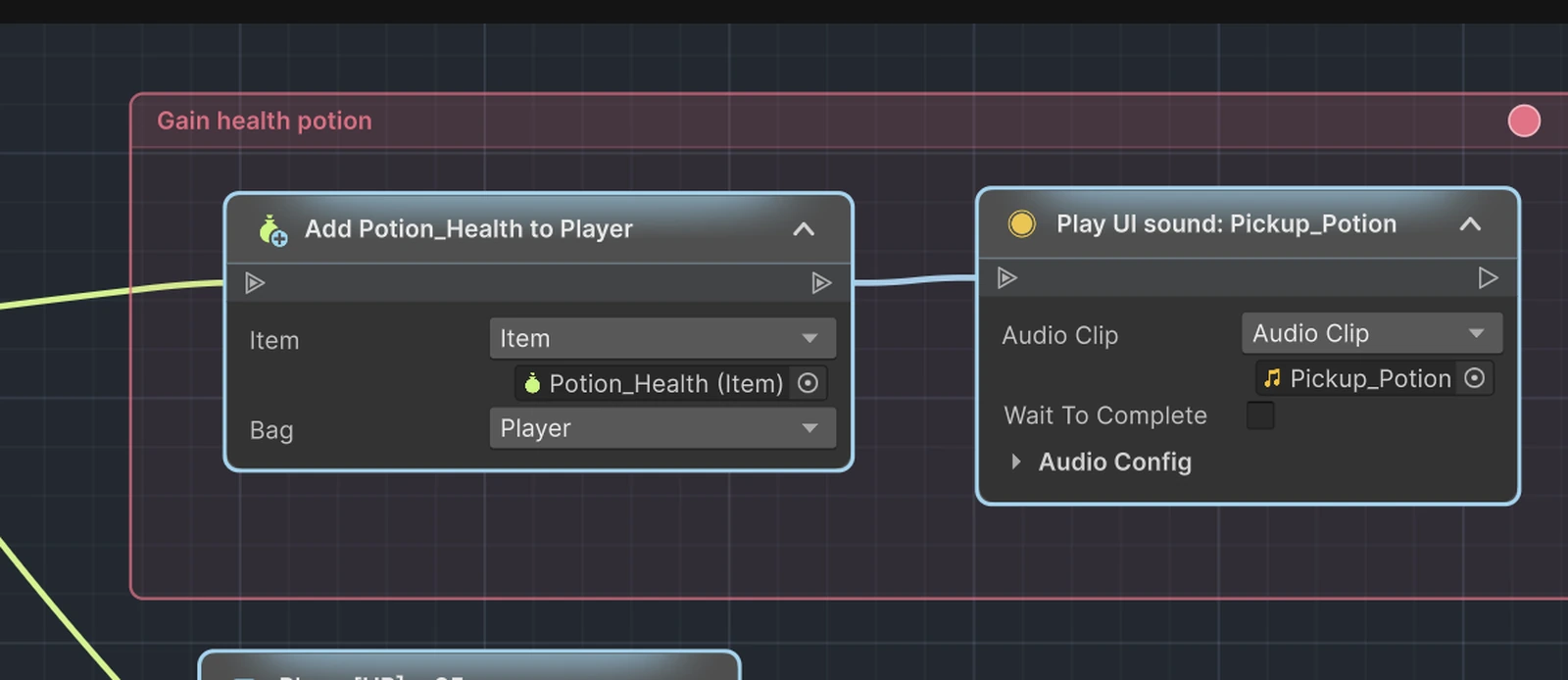
Placemat
A placemat is a titled, colored frame for a group of nodes.
Create one in either way:
- select nodes and choose Create placemat from selected nodes on the toolbar;
- right-click the canvas and add an empty placemat.
Moving a placemat moves its member nodes. Rename it from its context menu and set or cycle its color to distinguish systems.
Use placemats for related parts of the behavior such as Input, Validation, Conversation, or Cleanup, rather than merely surrounding every short chain.
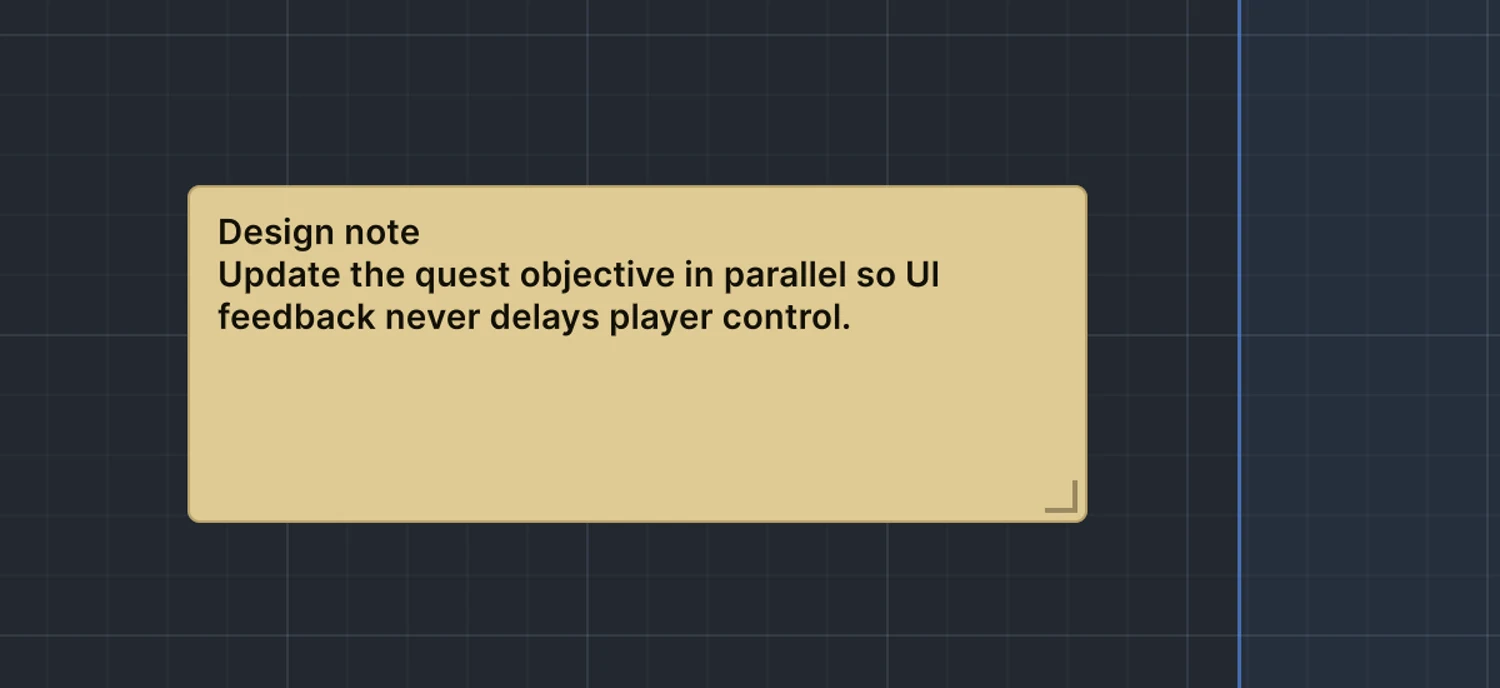
Sticky note
Right-click the canvas and choose Add Sticky. Edit the text directly and resize or move the note near the behavior it explains.
Sticky notes work best for intent and constraints:
- why a delay exists;
- what another system expects;
- which prefab layer owns a decision;
- what must stay synchronized.
Avoid repeating node titles that are already visible.
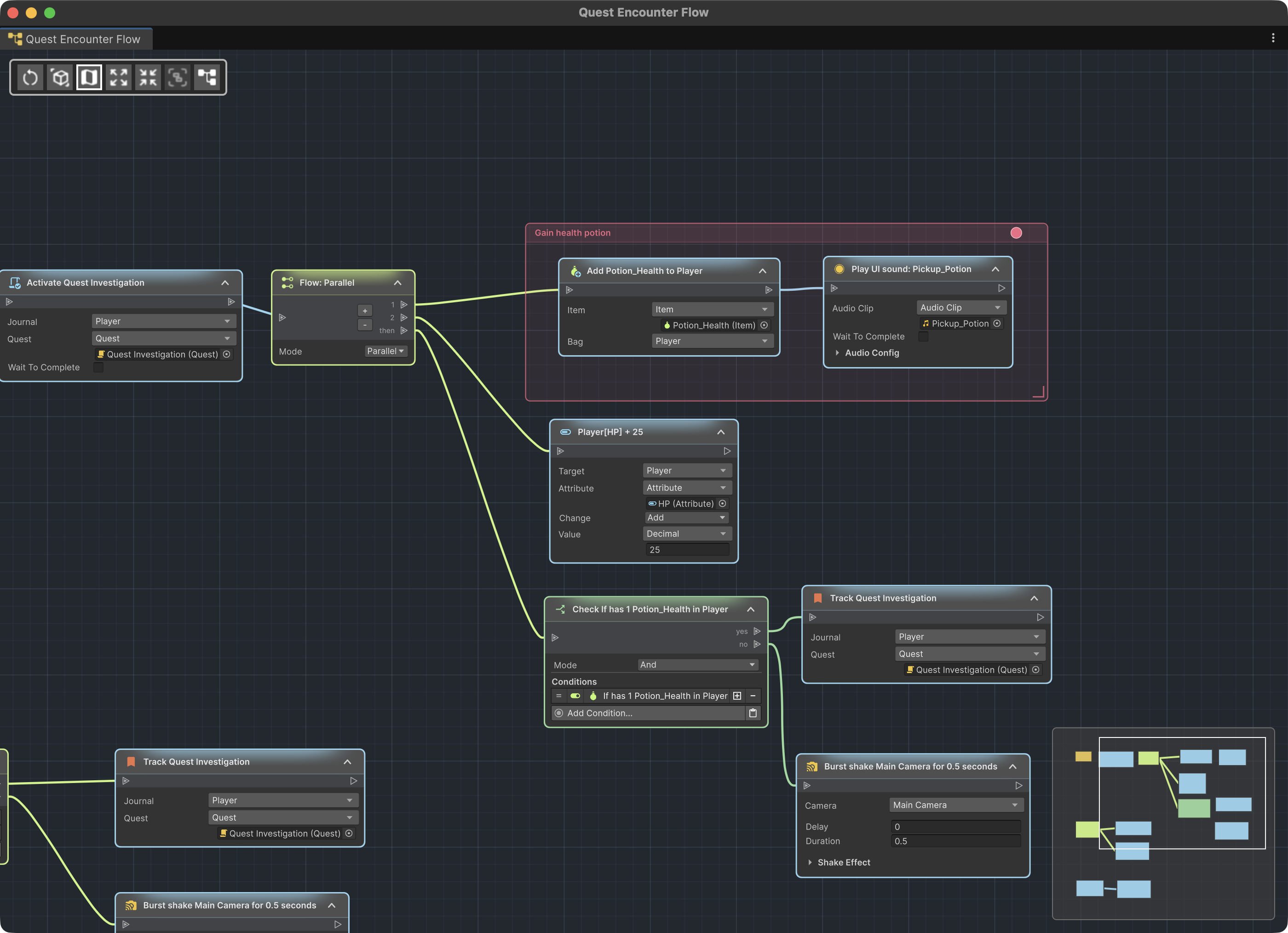
Minimap and focus
Enable the minimap when the graph spans several viewports. Collapse long instruction bodies when reviewing structure and expand them again when editing values. Click a node in the minimap to focus the main canvas on it. To focus the canvas on one or more selected nodes, press F.
Layout and prefabs
Prefab assets provide inherited layout. A prefab instance can have its own layout overrides. The instance banner makes that context visible; see Prefabs and overrides.