Debug in Play Mode
Keep an ActionFlow 2 graph open when entering Play Mode to see execution in the same structure you use for authoring.
Following the highlighted path keeps the active branch in context; there is no need to match runtime behavior against a hierarchy of nested Inspector lists.
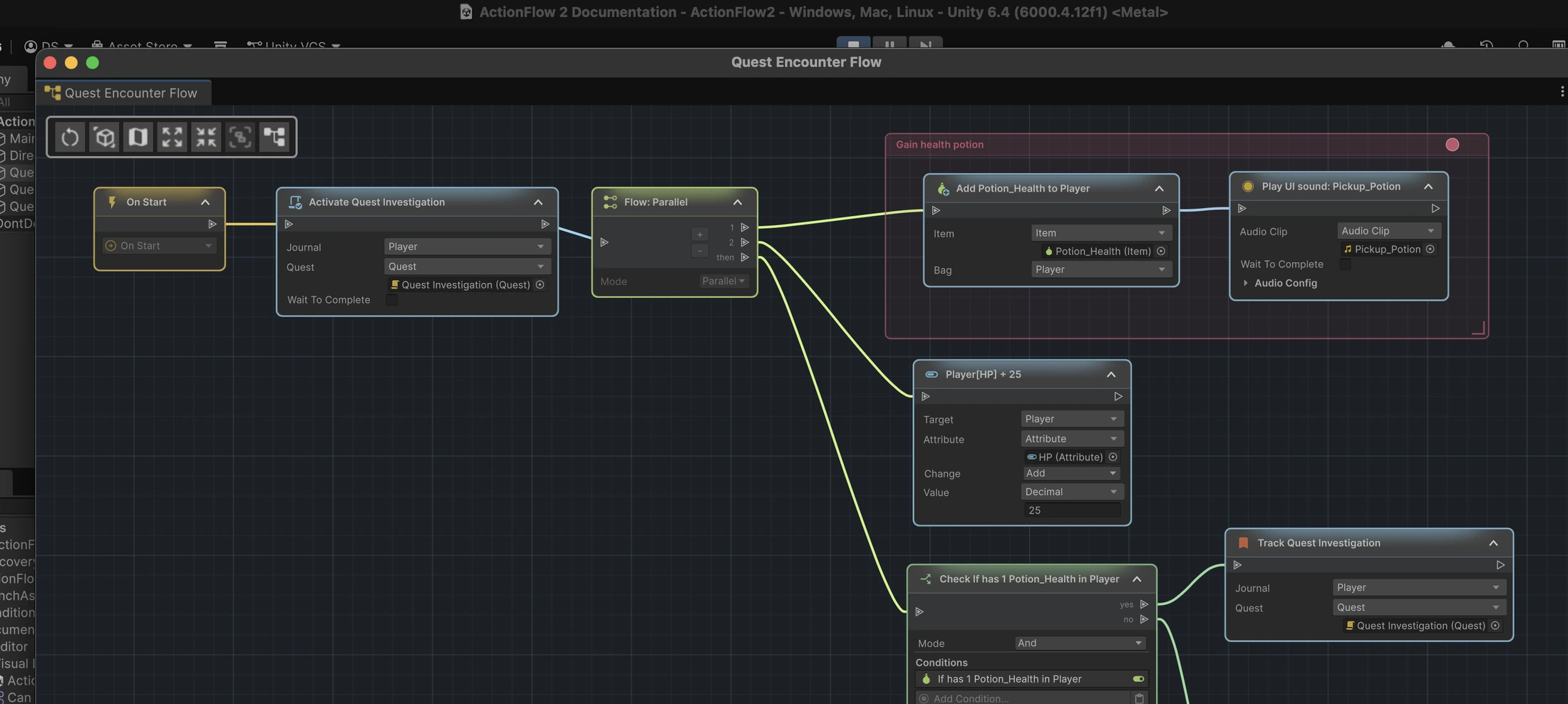
Runtime highlighting
As Game Creator runs the behavior, ActionFlow 2 highlights:
- the trigger that fired;
- instructions as they execute;
- a branch as it executes and the path it chooses;
- instructions that run after a wait;
- direct and nested ActionFlow asset calls;
- compatible LogicBlock and instance-list calls.
When a branch resolves, the chosen outgoing path continues with the normal execution highlight and the connection to the other path turns red. The red connection means that path was not chosen; it does not indicate a runtime error.
This makes it easier to distinguish a rejected path or a path that never ran from a node whose fields produced an unexpected result.
Recommended workflow
- Open the graph you want to observe.
- Enter Play Mode.
- Cause the trigger in the Game or Scene view.
- Watch the active path in the graph.
- Stop Play Mode.
- Make structural edits in Edit Mode.
Component graph values
Structural edits are disabled during Play Mode. Supported component values can be adjusted for runtime testing. ActionFlow 2 keeps the authoring state separate and restores it after Play Mode instead of turning runtime structure into scene or prefab edits.
You can undo and redo other Unity edits normally during Play Mode. If a command would change an ActionFlow graph edit, ActionFlow 2 stops Play Mode and keeps that edit unchanged. Repeat the command in Edit Mode to apply it. This also applies after closing a graph window.
Asset values
ActionFlow and compatible LogicBlock asset structures remain locked in Play Mode. Asset settings can still be edited and persist according to Unity's normal asset behavior. This differs from changes made to runtime scene objects, so confirm the target before experimenting.
Enter Play Mode options
Execution highlighting works with Unity's Enter Play Mode options, including when scene or script reloading is disabled. If highlights disappear, consult Troubleshooting.
Debug structure before values
First confirm that the expected nodes highlight in the expected order. Then inspect node values. This separates flow mistakes from data mistakes quickly.