Open your first graph
ActionFlow 2 opens Game Creator components, reusable ActionFlow assets, and compatible LogicBlock assets. Choose the graph type that matches the behavior you want to edit.
Try the included sample
Open Assets/Plugins/bionic/ActionFlow2/Samples/QuickStart/QuickStart.unity.
Select Quick Start - Open in ActionFlow 2, open its graph, then press Play
and watch the Console. The example connects an On Start trigger to a Branch,
Flow Sequential, and a reusable Instruction Asset call.
Stop Play before editing. Change the Boolean comparison to explore the alternative branch. Only Game Creator 2 Core is required. The sample folder contains a README with the expected output and a short walkthrough.
Open from the Inspector
- Select a GameObject containing a Trigger, Actions, Conditions, or compatible Story Engine Rule component.
- In the Inspector, choose Open Graph.
- Edit the component settings in the graph. Choose Unlock Inspector if you want to switch back to the Inspector.
The graph window opens for that GameObject and restores its saved viewport and layout.
Open from a component menu
Open the component's context menu and choose Open in ActionFlow 2. This command is available for Trigger, Actions, Conditions, and compatible Story Engine Rule components.
Read the first graph
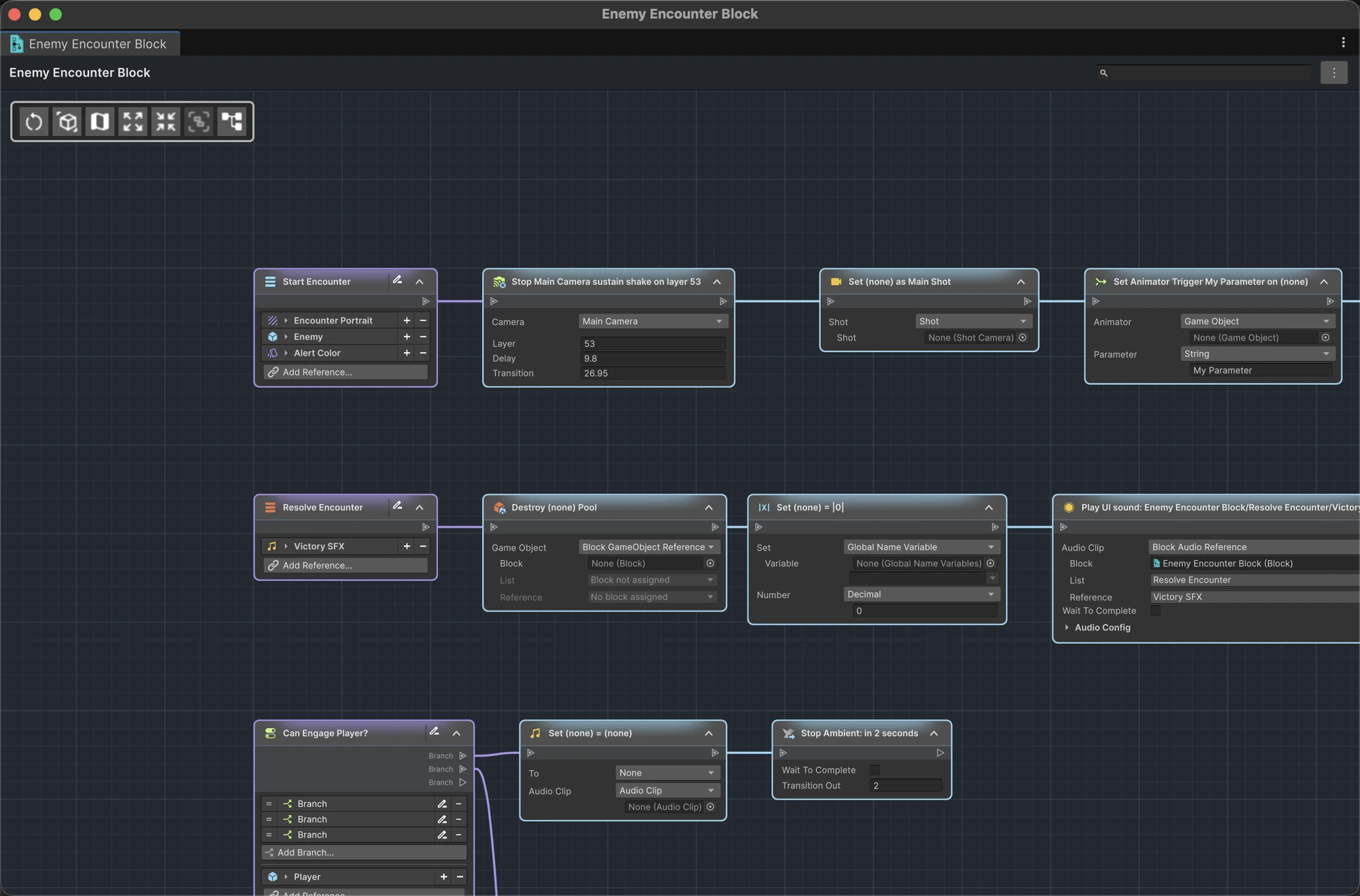
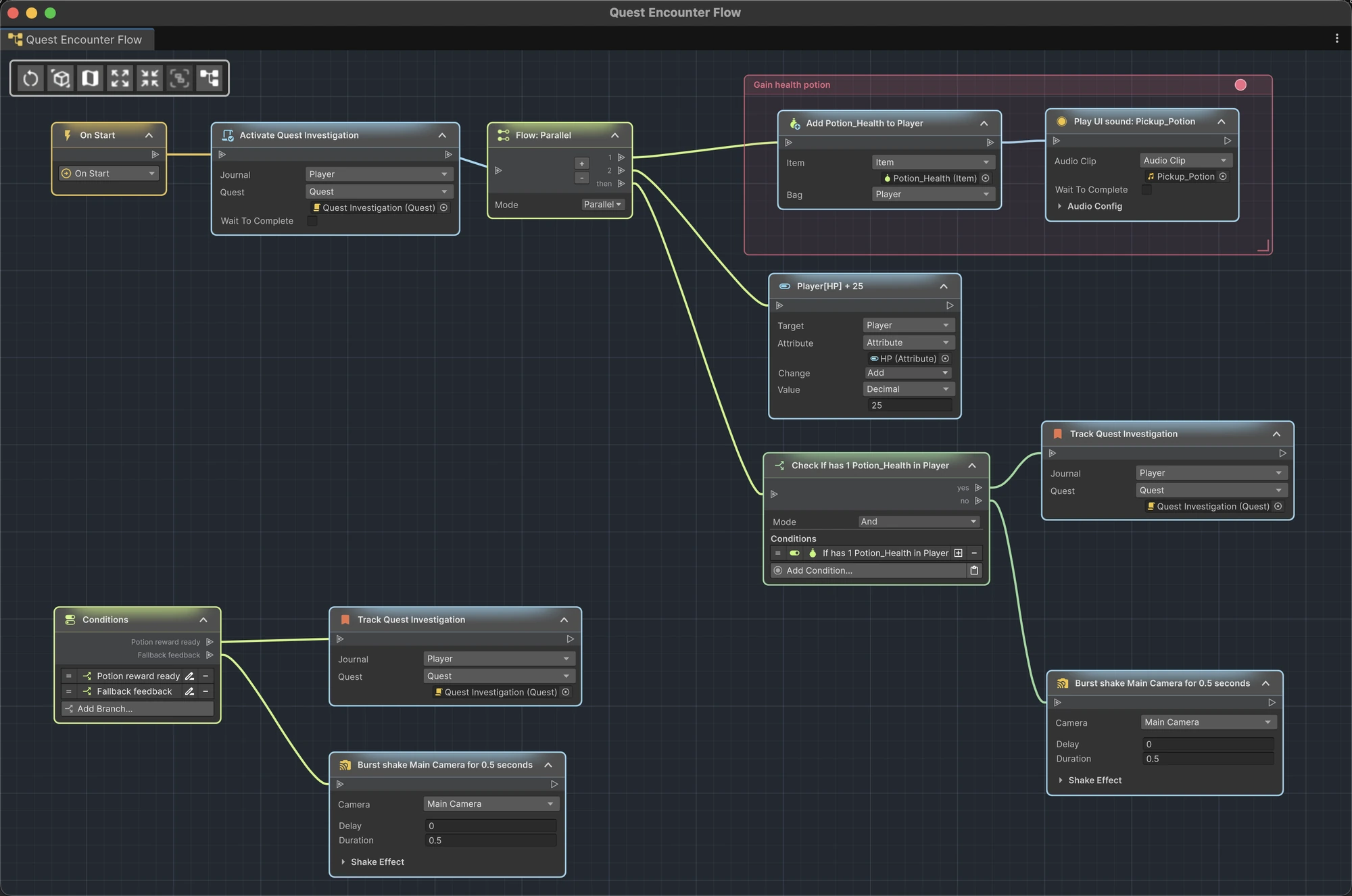
- Gold nodes are graph roots such as triggers; compatible Story Engine Rules use teal roots with their criteria embedded in the node body.
- Blue connections show the direction of execution.
- Each node body contains the same settings you would edit in the Game Creator Inspector.
- The toolbar in the upper-left controls the viewport, minimap, node expansion, placemats, and automatic layout.
Follow the connections instead of retracing nested Inspector lists: each node's incoming path shows which root, branch, or Flow output owns it.
Compatible Game Creator Events and Instructions from installed modules appear in the same node picker and keep their normal settings. When a compatible Story Engine version is installed, the picker also offers Rule.
Start with a small behavior
A trigger followed by two or three instructions is enough to learn connecting, inserting, and deleting nodes before you open a production graph.
Next, take a tour of the graph workspace.
Open a reusable ActionFlow asset
- In the Project window, use Create › Game Creator › ActionFlow 2.
- Create an Instruction Asset or Branch Asset.
- Double-click the asset, or select it and choose Assets › Open in ActionFlow 2.
The graph has one permanent root, the starting point of its flow. Add nodes from that root or from an existing connected output. Define typed parameters in the root and supply their values in the Game Creator instruction that calls the asset.
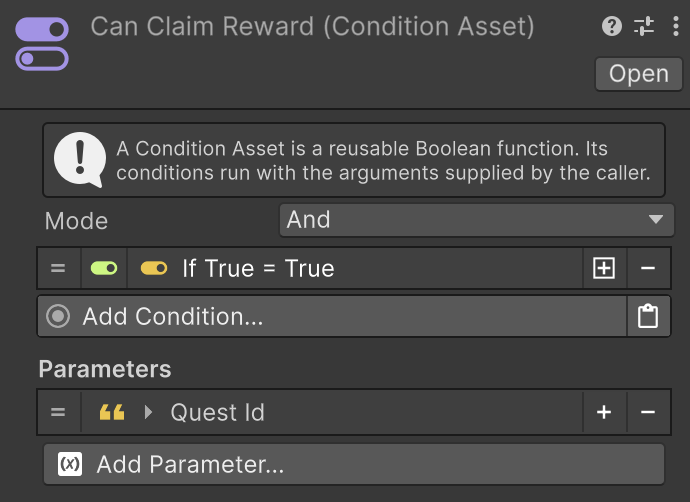
Edit Condition Assets in the Inspector. They return true or false and do not need connected execution paths.

Open a LogicBlock asset
When LogicBlock is installed:
- Select a LogicBlock Block asset.
- Choose Assets › Open in ActionFlow 2, or double-click the asset.
- Start in Overview, then open an individual instruction or condition list for focused editing.
Learn about LogicBlock integration.