Prefabs and overrides
Use prefab assets for shared behavior and prefab instances for changes that apply to one copy. Graph layout follows the same distinction.
Prefab asset
Open a prefab asset graph in Prefab Mode to edit the shared source behavior and default layout. Saved changes flow to instances unless an instance overrides the same data.
Prefab instance
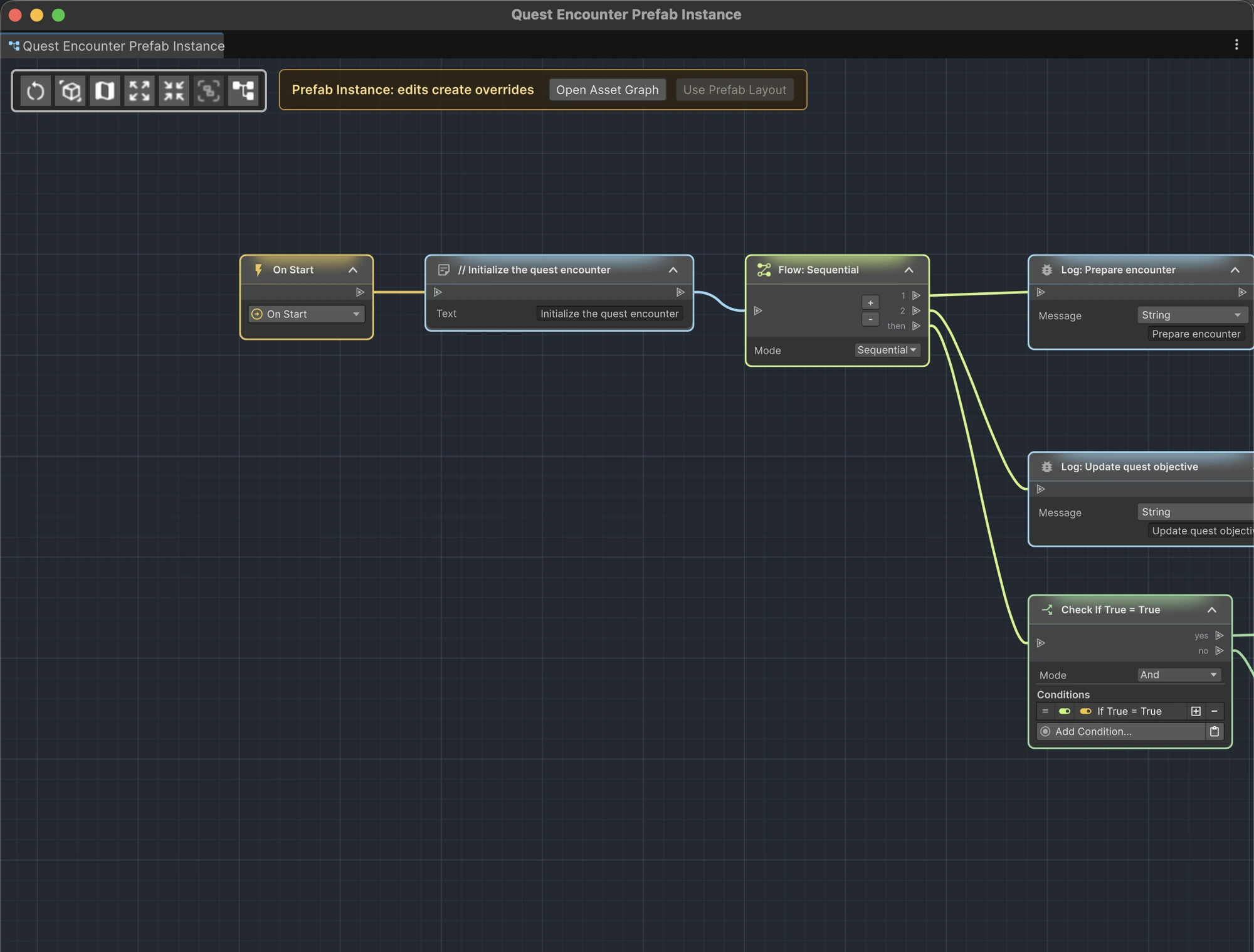
When you open a scene instance, ActionFlow 2 displays a banner:
Prefab Instance: edits create overrides
Value and structural edits become normal Unity prefab overrides, just like changes made through the Inspector. Layout changes can also create instance graph-layout overrides.
Open the asset graph
Choose Open Asset Graph from the prefab instance banner to open the corresponding prefab source in Prefab Mode. Use this when the behavior should change for every instance.
Use prefab layout
Choose Use Prefab Layout to return an instance to its inherited graph layout when that control is available. This resets the instance's graph layout. It does not revert instruction settings or connections; use Unity's prefab override controls for those.
Apply and revert
Treat Apply and Revert as prefab operations, not graph-only commands:
- Finish the current graph edit.
- Wait for the edit to finish.
- Review overrides in Unity.
- Apply or revert on the prefab asset or variant you intend to change.
For nested prefabs and variants, verify whether you are editing the immediate source, a variant, or a scene instance before applying changes.
Recover pending edits after a prefab change
If a prefab changes while an instance graph still has pending edits, ActionFlow keeps a recovery copy before reloading or closing that graph. Choose Keep Copy & Reload to continue with the current prefab and its existing instance overrides.
Choose Open Recovery, or Window › ActionFlow 2 › Recovery, to find the pending edits. Open Recovered Graph in a New Scene opens a separate graph copy without replacing the original prefab or closing your current scene. The recovered GameObject starts inactive so it does not run accidentally. Review and save the copy before moving any recovered work into your project.
Keep the original scene open while recovering references to scene objects.
Recovery copies remain available after a successful recovery. They are stored
locally in UserSettings/ActionFlow/Recovery. Use
Export Copy to keep a copy outside the project, Delete Copy to remove a
copy you no longer need, or Refresh Saved Copies after restoring files from
a backup. Deleting a recovery copy does not change the original graph. Recovery
copies are not a substitute for project backups. Do not commit the local
UserSettings folder to version control. Missing scripts
or referenced objects must be restored before a complete graph can be recovered.
If a save is blocked, the Recovery window names the affected file and explains the next step. Keep the scene open to preserve its other unsaved changes. If disk space or write access prevents a recovery copy from being saved, restore access and use Retry Saving Recovery Copies.
When quitting with an unsaved recovery copy, ActionFlow lists the affected pending graph edits and offers Retry Saving, Cancel, or Quit Without Saving These Changes. The last option can lose those pending edits. Existing saved assets and recovery copies are kept, and Unity continues its normal save prompts. Cancelling shutdown keeps the unsaved graph changes available.
Local Variable IDs on prefab instances
Game Creator may show Another Variable Component has the same ID after more than one instance of a prefab containing Local Name Variables or Local List Variables is placed in a scene. Each instance initially inherits the ID stored by the prefab asset.
When Save is disabled on the Local Variables component, the warning is cosmetic for ordinary component-local variable access. When Save is enabled, duplicate IDs are unsafe because instances can collide in Game Creator's save/load registration and saved data.
Expand the component's ID field and choose Regenerate on each scene instance, keeping the generated ID as an instance override. Repeat this for new instances dragged from the Project window. Do not apply one regenerated ID back to the prefab source, because its instances would inherit the same ID again.
These IDs are managed by Game Creator. ActionFlow 2 leaves them unchanged. See Game Creator's official documentation for Local Name Variables and Local List Variables.
Choose where to edit
- Edit the prefab asset for shared behavior and shared layout.
- Edit the instance for intentional per-instance behavior or presentation.
- Review Unity overrides before Apply or Revert.