Edit a graph
Add instructions, connect them and edit their settings on the canvas. The connections show where each instruction runs in your behavior.
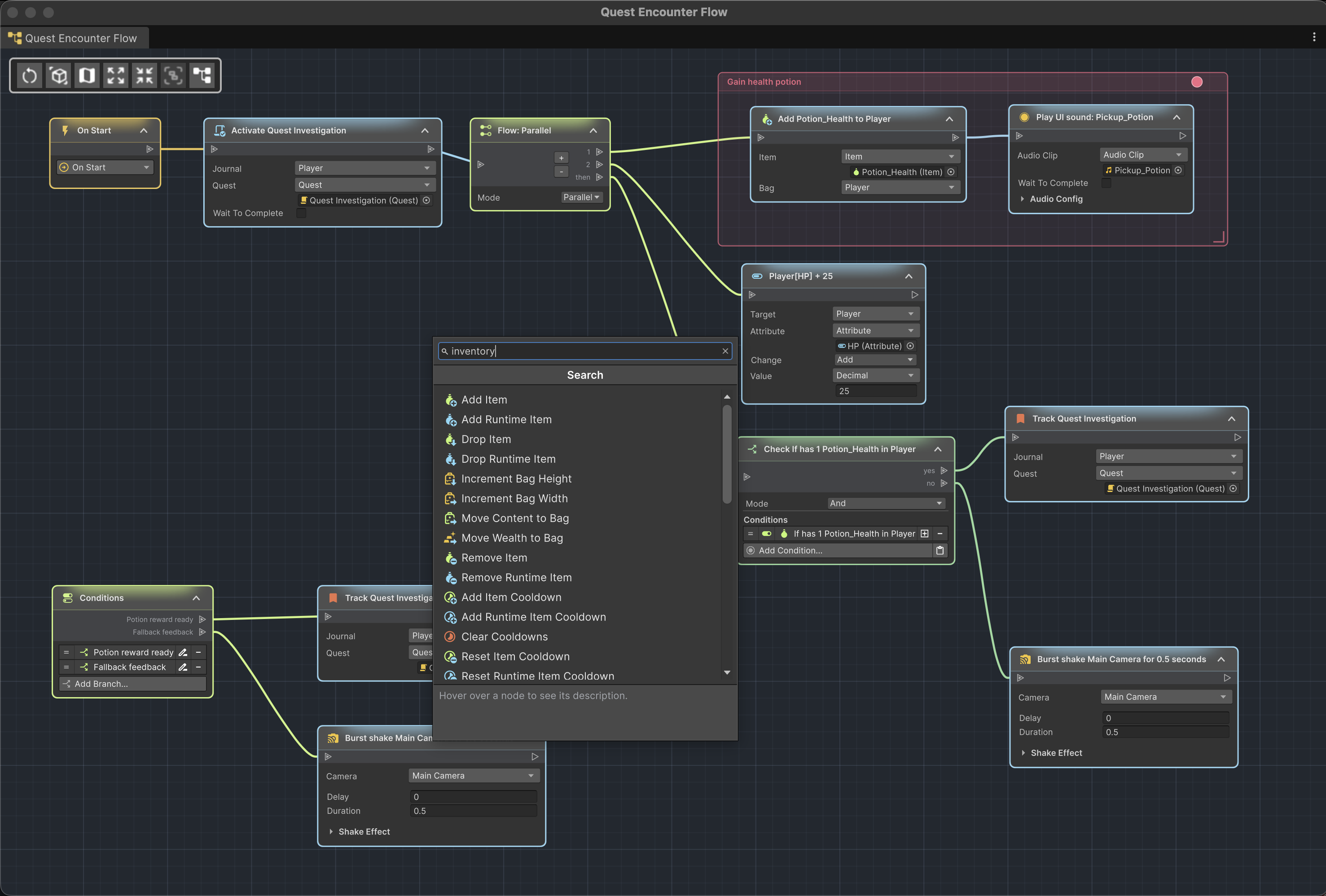
Add a node
- Press Space or right-click the canvas and choose Add Node.
- Search or browse to a node type.
- Select it to create the node at the picker position.
- Drag from an output port to connect it.
When you begin from an existing connection, use compatible nodes to preserve a valid execution chain.
In reusable ActionFlow asset graphs, begin at the permanent root or an existing connected output. Nodes that are not connected to the root do not run.
Connect nodes
Drag from a source output port to the destination input port. Compatible ports highlight during the gesture. Press Esc to cancel an active connection drag.
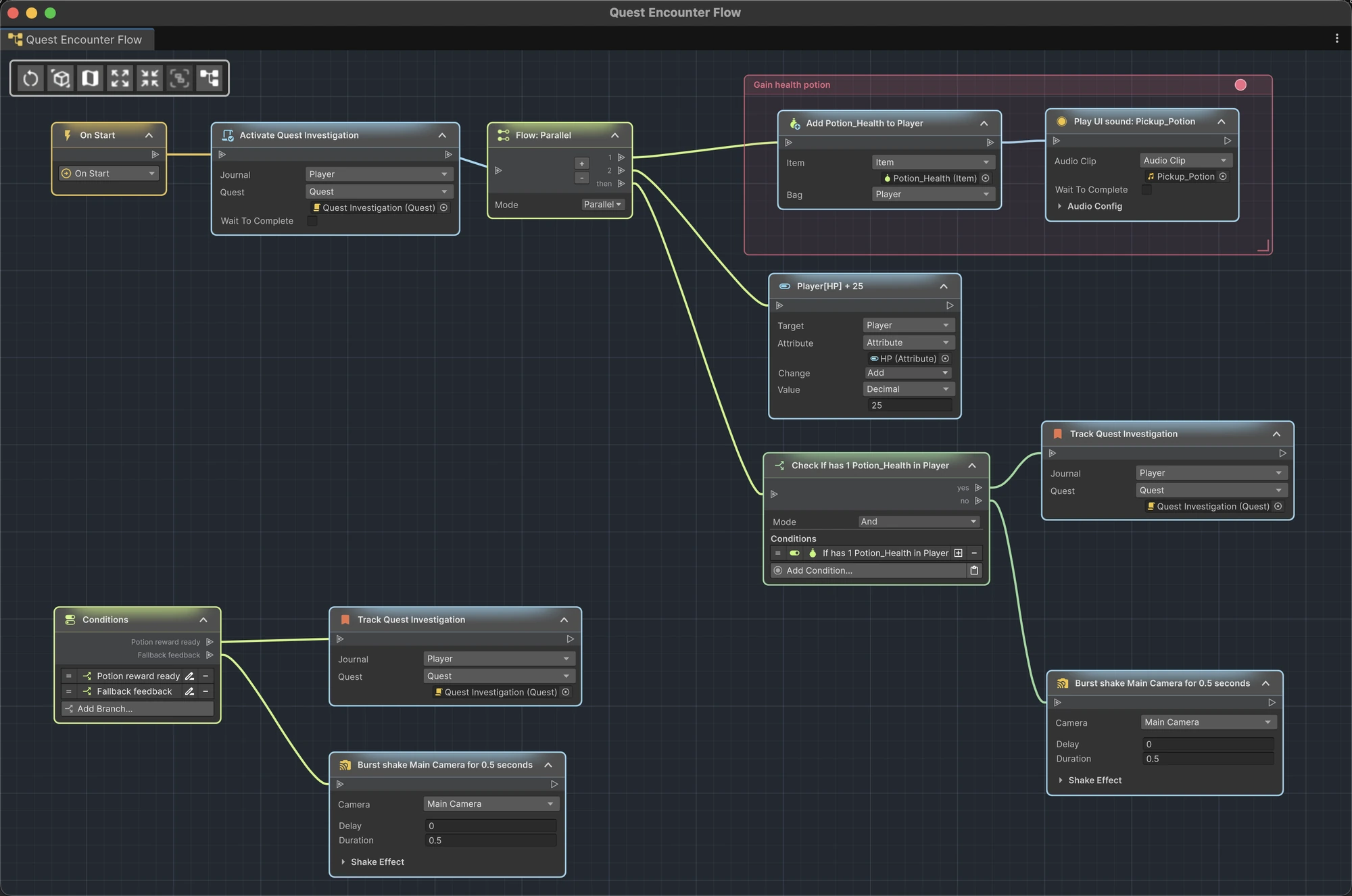
Disconnect nodes
Right-click the node and choose Disconnect Input or the relevant Disconnect Output command. This changes the instruction sequence or branch; it is not just a layout edit.
Copy and paste
- Select one or more nodes.
- Press Cmd+C on macOS or Ctrl+C on Windows/Linux.
- Press Cmd+V or Ctrl+V to paste copies near the original nodes.
- Drag the pasted nodes to the intended location.
To paste near a chosen location, right-click there and choose Paste Nodes. You can also use the node context menu. Pasted nodes are separate copies that you can edit and connect independently. Rule root nodes cannot be copied in the graph.
Delete nodes
Select the nodes and press Del or Backspace. You can also use the node context menu.
Deleting a node changes the Game Creator structure. Use Unity Undo immediately if the operation was unintended.
Edit fields
Expand the node body and edit values exactly as you would in the Game Creator Inspector. Use Unity Undo to reverse a completed edit.
The picker and embedded fields also include compatible content from every installed Game Creator 2 module after Unity recompiles.
Collapse and expand
Use the arrow in a node's header for one node or the context menu for the current selection. The toolbar buttons affect selected nodes when a selection exists; with no selection they affect the whole graph. Hold Alt (Option on macOS) while clicking either button to expand or collapse all nodes regardless of the current selection.
Collapsed instruction nodes reduce visual noise while keeping the flow visible.
Undo and redo
Use Unity's standard Undo and Redo commands:
- Cmd+Z / Ctrl+Z to undo;
- Cmd+Shift+Z or Ctrl+Y to redo.
ActionFlow 2 treats a completed graph action, such as a move, connection, deletion, paste, or value change, as one logical operation where possible.
Undo and Redo work the same way in component graphs, ActionFlow assets, and compatible LogicBlock assets.
During Play Mode, you can undo and redo other Unity edits normally. If a command would change an ActionFlow graph edit, ActionFlow 2 stops Play Mode and keeps that edit unchanged. Repeat the Undo or Redo command in Edit Mode to apply it. This also applies after closing a graph window.
Play Mode is not an authoring workspace
Structural graph edits are disabled during Play Mode and play-mode transitions. Return to Edit Mode before adding, deleting, reconnecting, or reorganizing behavior.