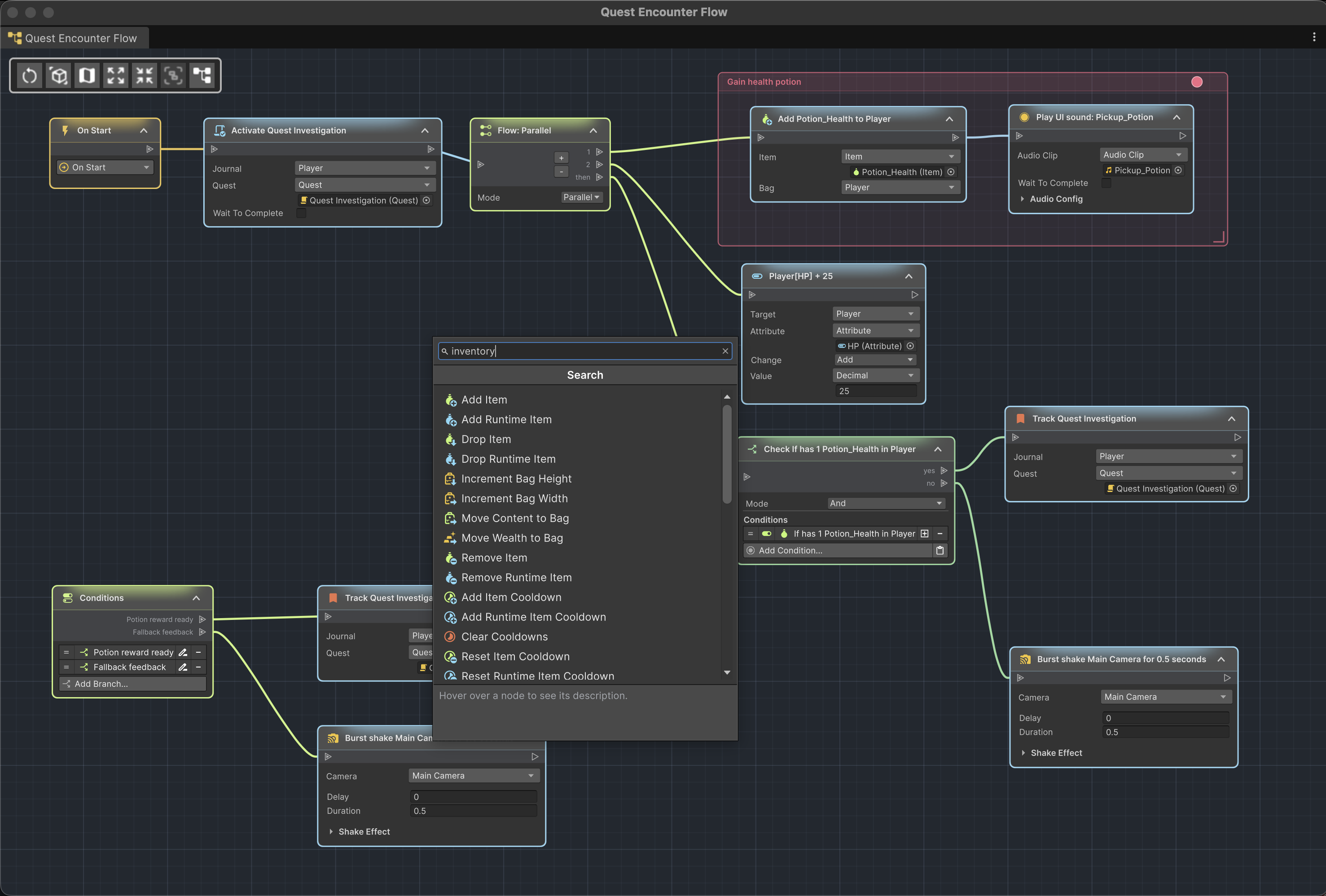
See the flow.
Shape the action.
ActionFlow 2 turns your Game Creator 2 logic into a connected graph. Stop tracing behavior through a jungle of nested Inspector lists. Start focusing on your game logic.
Compatible installed Game Creator 2 modules. Automatically. Triggers, Events, and Instructions show up in your graphs after Unity compiles modules compatible with the installed Core version.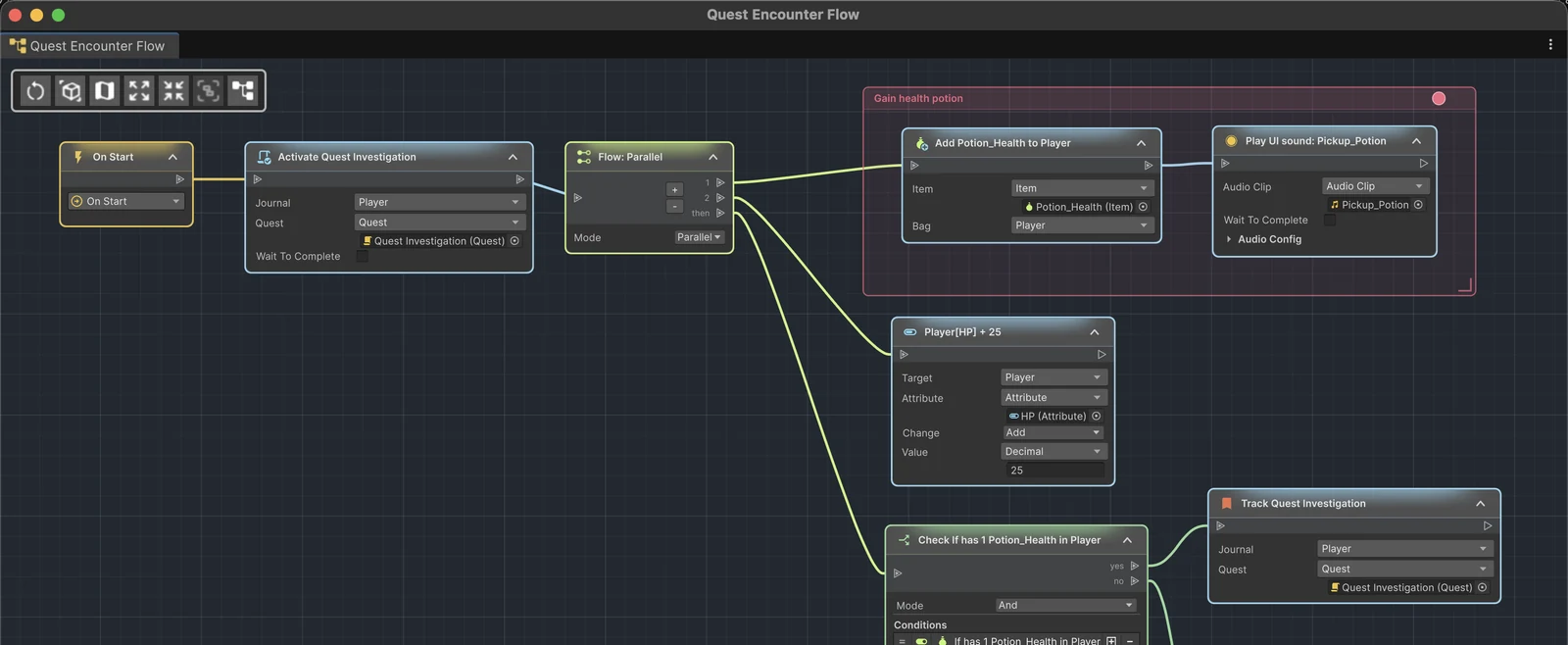
Why a graph?
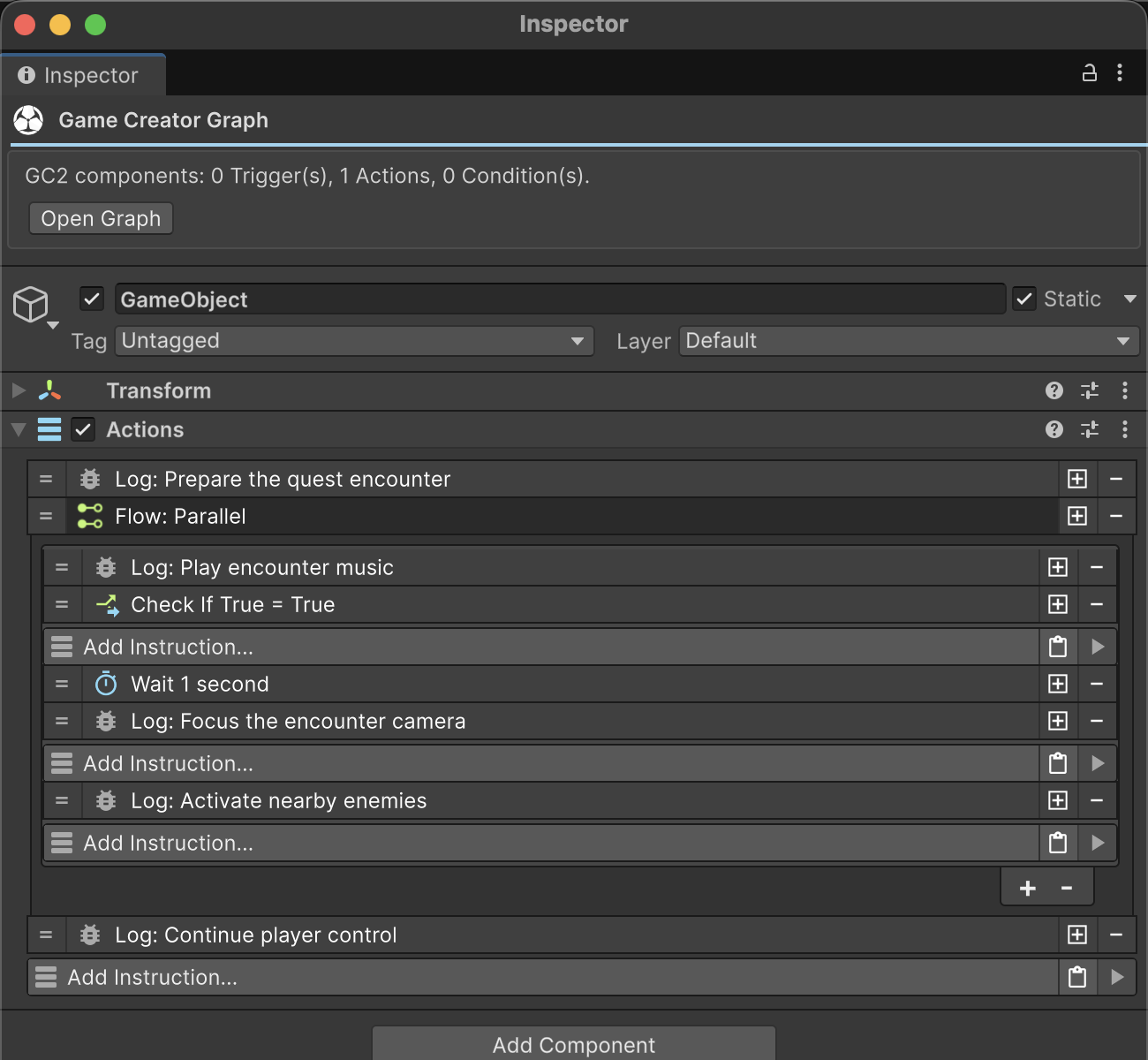
See the whole behavior, not just nested lists.
Inspector list editors stack nested levels vertically. Once logic branches, finding an instruction means remembering which list, branch-level, and parent owns it.
ActionFlow 2 naturally visualizes the whole context and enables you to work on your game logic instead.
Built for real Game Creator projects
Component and prefab logic, mapped
See Triggers, Actions, Conditions, branches, and Flow paths as one connected structure across scenes, prefab assets, instances, variants, and nested prefabs.
Build callable Instruction, Branch, and Condition assets with typed parameters and caller-supplied Game Creator values.
Compatible installed Game Creator 2 modules
Installed Events and Instructions appear automatically. Installed modules also add compatible parameter types for reusable assets.
Optional LogicBlock integration
Open complete LogicBlock assets, navigate their lists, find usages, and watch direct and instance-list execution in the graph.
Use Unity Undo and Redo, prefab overrides and normal project saving while editing your Game Creator behavior.
Leave graphs open in Play Mode and see triggers, branches, instructions, asset calls, and LogicBlock paths highlight as they execute.
One editor, three graph types
Choose a component graph, reusable ActionFlow asset or LogicBlock asset to match the behavior you want to edit.
| Graph type | What it opens | Best for |
|---|---|---|
| Component graph | Trigger, Actions, Conditions, and compatible Story Engine Rule components on one GameObject | Reading and editing scene or prefab behavior without losing branch context |
| ActionFlow asset | Reusable Instruction and Branch assets; Condition assets use a compact Inspector | Reusing behavior with different input values |
| LogicBlock document | A compatible LogicBlock Block asset and all its instruction/condition lists | Seeing related LogicBlock lists together before focusing on one |

Works with your Game Creator setup
ActionFlow 2 discovers the Game Creator modules compiled into the project. Their Events and Instructions appear in the node picker, and supported value types become available for asset input parameters. There are no separate per-module ActionFlow integration packages to install.
See the exact supported Unity and Game Creator versions.