LogicBlock integration
When a compatible LogicBlock version is installed, ActionFlow 2 can open a LogicBlock Block asset as one graph. Edit its lists, arrange nodes and watch execution in Play Mode using ActionFlow 2.
LogicBlock is optional. ActionFlow 2 does not require NodeFlow for this integration.
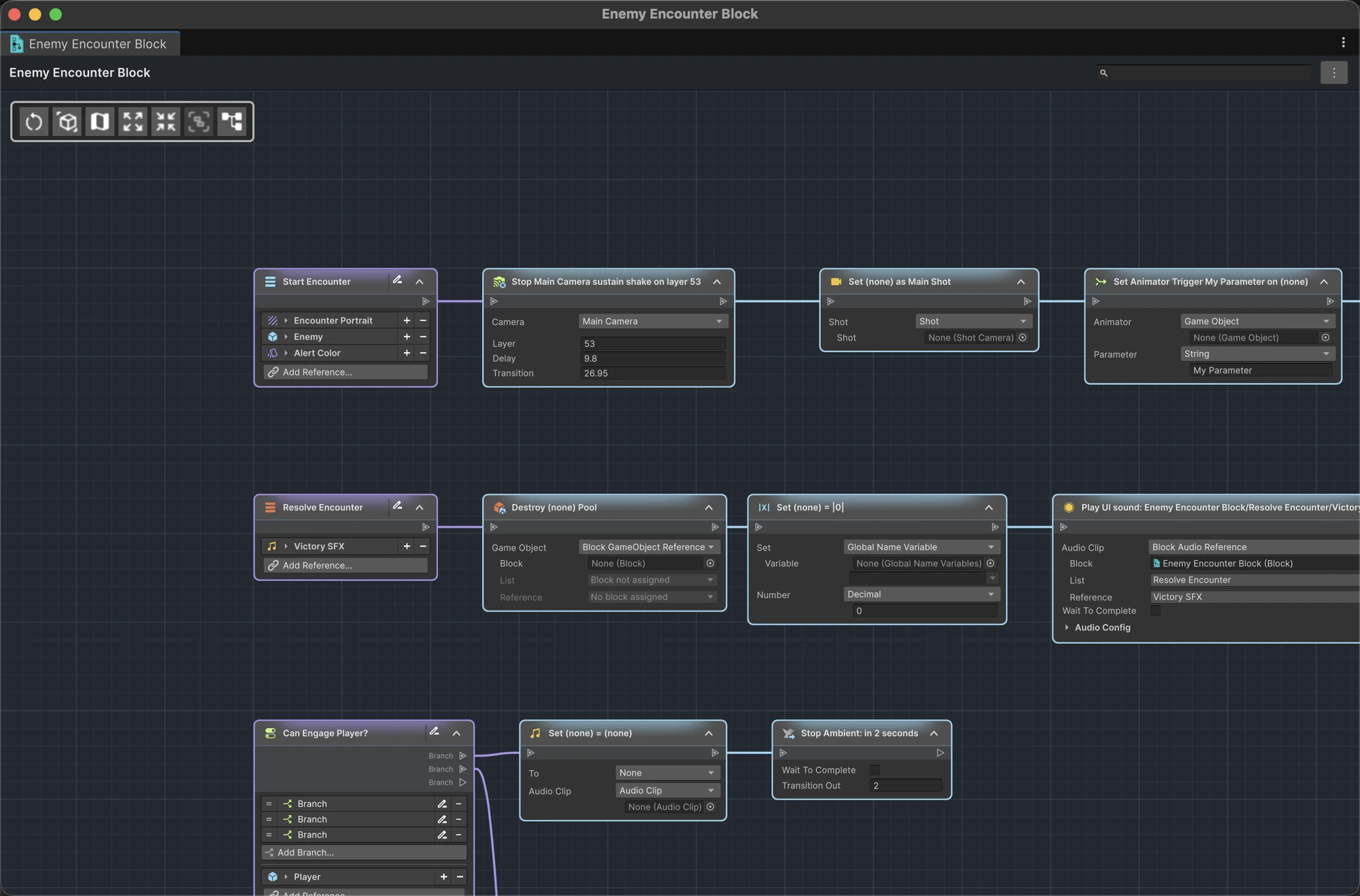
Open a Block asset
Use either workflow:
- double-click a compatible LogicBlock Block asset; or
- select it and choose Assets › Open in ActionFlow 2.
The asset's context menu also offers Open in ActionFlow 2 for a compatible selected asset.
Navigate the document
The Block opens as a unified document with two levels:
- Overview shows the Block and its instruction and condition lists;
- a focused list view opens one instruction or condition list for editing.
List roots show their names and inputs. You can create and navigate lists without losing the context of the parent Block. Use the Overview as a visual map instead of relying on memory to relate isolated, nested Inspector lists.
Edit LogicBlock flow
Compatible lists use the same tools as other ActionFlow graphs:
- node search and creation;
- settings inside nodes;
- connecting and disconnecting nodes;
- copy, paste, delete, and saved layout;
- Unity Undo and Redo;
- refresh when the asset changes outside the graph.
Use Edit Mode to add, delete and reconnect nodes. Edits in the graph are saved to the LogicBlock asset.
Find usages
Open the document menu and choose Find Usages to search for references to the current LogicBlock content. The search covers usages in open scenes and in saved project assets.
This is especially useful before changing a list's inputs or removing a list from a shared Block.
Debug in Play Mode
Keep the Block document open while entering Play Mode. ActionFlow 2 can highlight execution through direct LogicBlock calls and compatible LogicBlock instance-list calls, including instructions that run after waits.
As with other graph types, Play Mode is for observation and value testing; structural editing remains locked.
Compatibility safeguards
ActionFlow 2 checks the installed LogicBlock version before allowing editing. If it is unsupported, the graph shows a compatibility message and leaves the asset unchanged. See Troubleshooting if a Block asset will not open.
Keep a checkpoint before package updates
After updating LogicBlock, let Unity finish compiling and open a copy or a representative Block first. Confirm that its lists and values appear as expected before editing production assets.