Install ActionFlow 2 | Game Creator 2
Requirements
Before installing ActionFlow 2:
- install and activate Game Creator 2;
- make a version-control checkpoint or project backup.
ActionFlow 2 extends Game Creator 2 and is not useful without it.
Requires Unity 6.3 LTS (6000.3) or newer and Game Creator 2. Unity 2022.3 and Unity 6.0, 6.1 and 6.2 are not supported. Use 6000.3.22f1 for the currently tested Unity 6.3 setup.
ActionFlow 2 is currently tested on Unity 6000.3.22f1 and 6000.6.0f1 with compatible Game Creator Core 2.19.61 packages.
Install official Game Creator Core and module releases compatible with your chosen Unity version and each other. Let them compile before importing ActionFlow 2. See Unity and Game Creator compatibility for upgrade guidance.
LogicBlock is optional. NodeFlow is not required by ActionFlow 2.
Import the package
- Open the Unity project in the Unity Editor.
- Import the distributed ActionFlow 2 package using the installation method supplied with your purchase.
- Wait for Unity to finish importing and compiling.
- Confirm that the Console contains no ActionFlow compilation errors or warnings.
- Select a GameObject with a Game Creator component and verify that Open Graph is available.
During compilation, ActionFlow 2 discovers compatible Events, Instructions, and parameter types from compatible installed modules. No separate ActionFlow integration package is needed for each module.

Optional LogicBlock integration
Install LogicBlock before or after ActionFlow 2. When Unity finishes compiling, select a compatible LogicBlock Block asset and choose Assets › Open in ActionFlow 2.
ActionFlow 2 detects LogicBlock automatically. If the installed version is unsupported, it shows a compatibility message and leaves the asset unchanged.
Do not edit the installed package while Unity is importing
Let compilation and any package-update work finish before opening a graph. Open graphs after Unity has finished importing and compiling.
Verify the installation
Select a GameObject with a Game Creator Trigger, Actions, or Conditions component and choose Open Graph in the Inspector.
If the graph opens and shows the component's contents, the editor integration is ready.
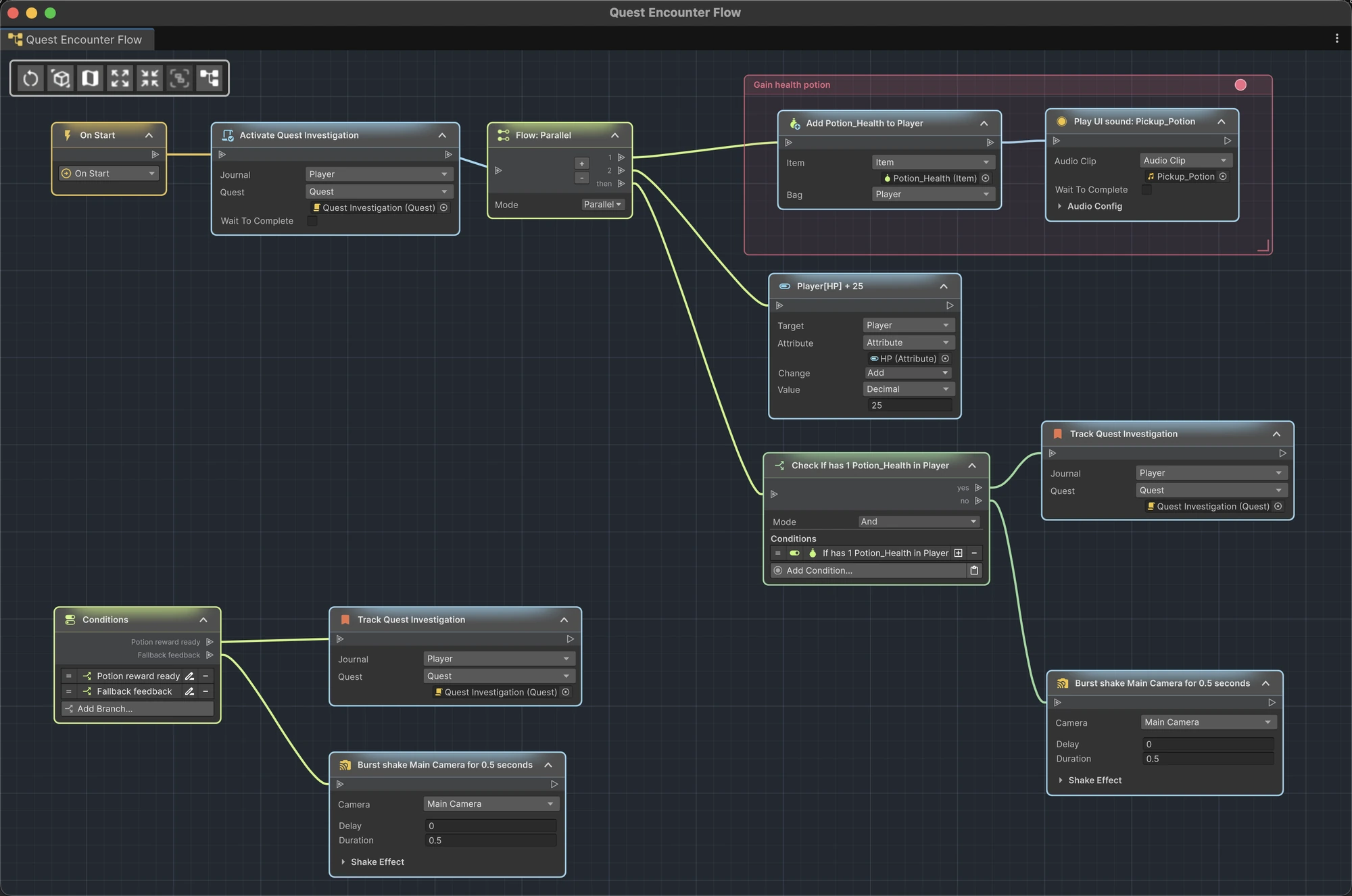
You can also verify the asset workflow:
- Create Game Creator › ActionFlow 2 › Instruction Asset from the Project window Create menu.
- Double-click the new asset.
- Confirm that its graph opens and the root shows its input parameters.

Update ActionFlow 2
- Close open ActionFlow 2 windows.
- Save the project and create a version-control checkpoint.
- Install the update using the same distribution channel as the original package.
- Let Unity recompile.
- Open a representative scene and prefab graph.
- Check the Console before continuing production work.
See Troubleshooting if the graph does not open or a component cannot be displayed.
If you import into an older Unity editor
ActionFlow stays inactive below Unity 6.3 and writes one explanatory warning to Unity's Console per editor session. It does not open a blocking dialog or change the project's Unity version. For an accidental fresh import, remove the ActionFlow folder if you want to keep using the older editor, or open a backed-up copy of the project in a supported Unity version to use ActionFlow.
This safeguard does not make an existing ActionFlow project compatible with an older editor. Such a project still needs ActionFlow's runtime types. Reopen it in a supported editor before editing or saving its graphs, scenes or assets.
Move the installation folder
Move the complete ActionFlow folder in Unity's Project window to preserve its files and references. Keep all of its folders together.
If your project uses custom assembly definitions (.asmdef files), keep
ParameterProviders outside them so new modules remain available to asset
parameters.
Work with version control
When an asset needs checkout, Unity can prompt when you edit a graph or restore a recovery copy. Background layout saves do not interrupt you with checkout prompts. If checkout fails, resolve it in your version-control tool, then retry saving from Window › ActionFlow 2 › Recovery.
Remove ActionFlow
Back up the project first. Before deleting ActionFlow, choose Tools ›
ActionFlow 2 › Remove ActionFlow Editor Data. The command closes graph windows,
asks you to save scenes, and removes ActionFlow notes, node layouts and the Inspector editing lock from scenes, prefabs and assets. It preserves gameplay logic and keeps
verified copies of each changed file under
UserSettings/ActionFlow/CleanupBackups. The completion message identifies any
files that could not be cleaned. Resolve those before removing the package.
You can cancel the cleanup. Files already cleaned retain their backups; files not yet processed are left unchanged. If cleanup reports a problem, review its message and the affected scene before continuing.
The cleanup command does not convert ActionFlow runtime nodes or reusable assets into Game Creator nodes. Projects still using Branch, Flow, Run Instruction List, ActionFlow asset calls or asset parameter values still need ActionFlow 2. Replace those usages before deleting the package. Export any recovery copies you want to retain before deleting local project settings or backups.
Icon licenses
See the third-party notices for icon sources and licenses.